
If you’re an employer, HR manager, or business owner who needs to manage your employees’ PF accounts, this section is specifically for you. The EPFO Employer Portal is different from the member portal — it’s designed for establishments to handle employee registrations, KYC approvals, ECR filings, and PF payments. Many employers get confused between the Shram Suvidha portal and the EPFO Unified Portal. Let me clear this confusion and show you the exact login process step by step.
What is EPFO Employer Portal?
The EPFO Employer Portal (also called Unified Portal for Establishments) is an online platform where registered companies and organizations can manage their employees’ provident fund accounts.
| Function | Description |
|---|---|
| Register New Employees | Add new members to PF system |
| Allot UAN Numbers | Generate UAN for existing and new employees |
| Approve KYC | Verify and approve employee KYC requests |
| File ECR Returns | Submit monthly Electronic Challan cum Return |
| Make PF Payments | Pay employer and employee PF contributions |
| Update Employee Details | Modify member information as needed |
| Manage Establishment Details | Update company address, contact, DSC |
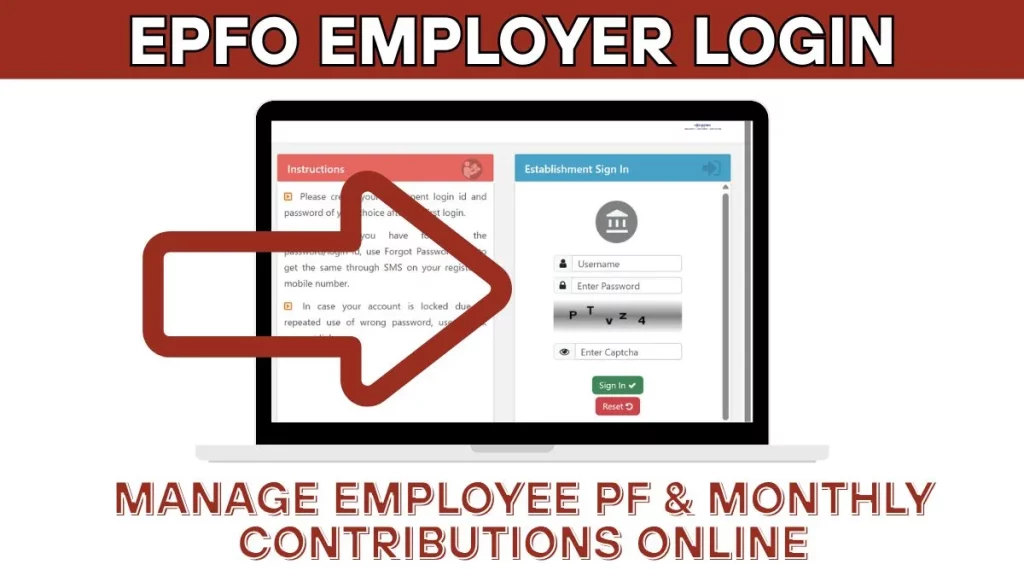
What You Need Before Employer Login
Before attempting to login, ensure you have these ready:
| Requirement | Details |
|---|---|
| Establishment ID | Your unique EPFO establishment code |
| Username | Created during establishment registration |
| Password | Your portal password |
| DSC (Digital Signature Certificate) | Required for approvals and filings |
| e-Sign (Optional) | Alternative to DSC for some functions |
If your establishment is not yet registered with EPFO, you need to complete the registration process first. This involves registering on the Shram Suvidha portal and then getting access to the EPFO Unified Portal.
Common Confusion: Shram Suvidha vs EPFO Employer Portal
Many employers make this mistake — they click on “Establishment Registration” thinking it will take them to the employer login page. But that link redirects to the Shram Suvidha Portal (Ministry of Labour and Employment), which is different from the EPFO Unified Portal.
| Portal | Purpose | URL |
|---|---|---|
| Shram Suvidha | Labour law compliance, registration | shramsuvidha.gov.in |
| EPFO Unified Portal (Employer) | PF management, ECR filing, payments | unifiedportal-emp.epfindia.gov.in |
For employer login, you need to access the EPFO Unified Portal for Employers — not the Shram Suvidha portal.
Step-by-Step EPFO Employer Login Process
Follow these steps carefully to login to your employer account.
Step 1: Open Your Browser
Open Chrome, Firefox, or any browser on your computer. Desktop or laptop is recommended for employer portal as many functions require DSC which works better on computers.
Step 2: Search for EPFO Employer Login
In Google, search for “EPFO Employer Login” or “Unified Portal Employer”. Look for the official EPFO link that says “Unified Portal – Employees’ Provident Fund Organisation” with employer option.
Or directly visit: unifiedportal-emp.epfindia.gov.in

Step 3: Access the Establishment Sign In Page
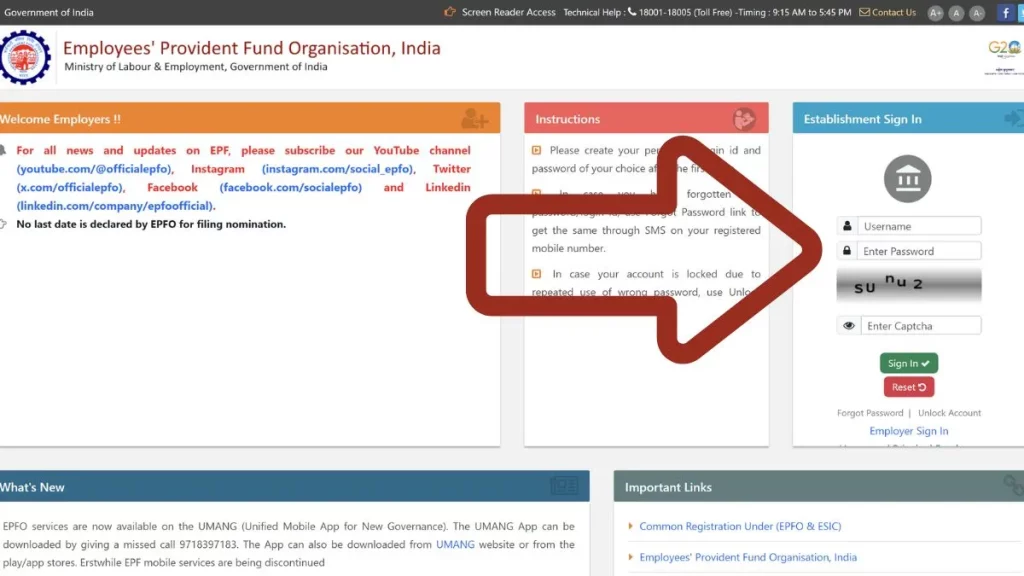
On the EPFO Unified Portal page, you’ll see multiple tabs. Look for the “Employer” tab and click on it. This will show you the Establishment Sign In section.
You’ll see the login form with these fields:
| Field | What to Enter |
|---|---|
| Username | Your establishment username |
| Password | Your portal password |
| Captcha | Type the characters shown |
Step 4: Enter Login Credentials
Enter your establishment username and password carefully. Make sure there are no typing errors. Type the captcha code exactly as displayed.
Step 5: Click Sign In
Click on the “Sign In” button. If your credentials are correct, you’ll be logged into your employer dashboard.
EPFO Employer Portal Dashboard Overview
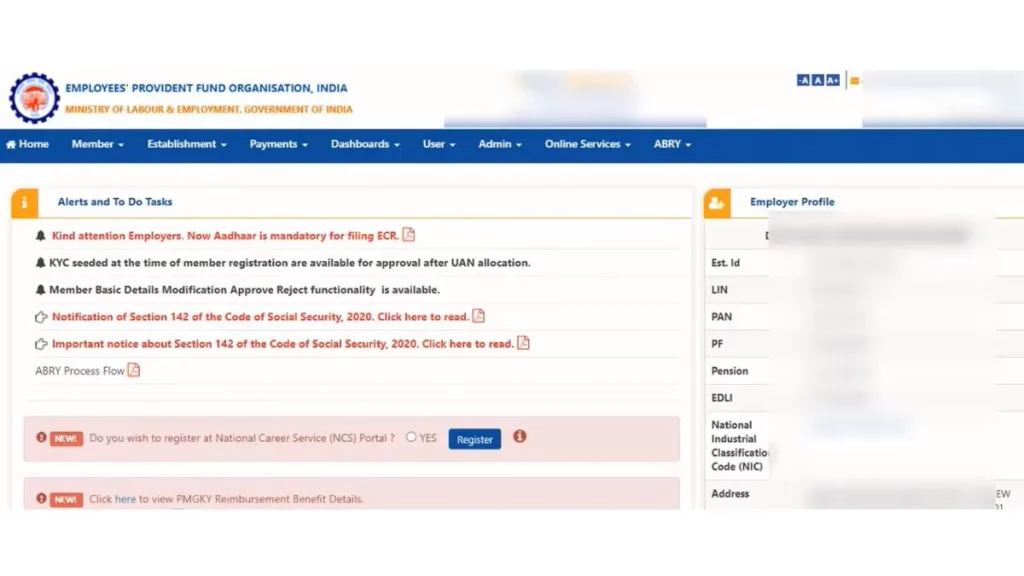
After successful login, you’ll see the employer dashboard with multiple menu options. Here’s what each section offers.
Member Menu
This is where you manage all employee-related functions:
| Option | Function |
|---|---|
| Member Profile | View and manage employee profiles |
| Register Individual | Add new employees one by one |
| Register Bulk | Upload multiple employees at once |
| KYC Bulk | Approve multiple KYC requests together |
| Basic Details Change Request | Approve employee detail modification requests |
| KYC (Approve) | Approve individual KYC submitted by members |
| UAN Allotment for Existing Members | Generate UAN for employees who don’t have one |
| Aadhaar Verification | Verify employee Aadhaar details |
| Approve Missing Details | Update missing information like father’s name |
Payment Menu
This section handles all payment-related functions:
| Option | Function |
|---|---|
| ECR Filing | File monthly Electronic Challan cum Return |
| Challan Payment | Pay PF contributions online |
| Payment History | View past payment records |
| ECR Summary | Check filed ECR details |
Establishment Menu
Manage your company details from this section:
| Option | Function |
|---|---|
| Address | Update establishment address |
| DSC/e-Sign | Register or update Digital Signature Certificate |
| Contact Details | Update manager/partner contact information |
| Modify Establishment Details | Correct any establishment information |
| Branch/Division | Manage multiple branches if applicable |
Key Functions Explained
Approving Employee KYC
When your employees submit KYC (Aadhaar, PAN, Bank) through their member portal, those requests come to your employer portal for approval.
How to approve:
- Go to Member → KYC
- You’ll see pending KYC requests
- Verify the details submitted by employee
- Approve using DSC or e-Sign
If no requests are pending, it will show “No Record Found”.
Basic Details Change Request
If any employee requests changes to their basic details (name spelling, date of birth, etc.), those requests appear here.
How to process:
- Go to Member → Basic Details Change Request
- Review pending requests
- Verify documents if required
- Approve or reject the request
UAN Allotment for Existing Members
For employees who were working before UAN system started or whose UAN was never generated:
- Go to Member → UAN Allotment for Existing Members
- Enter employee details
- System will generate UAN
- Share UAN with the employee
Filing ECR Return
Every month, employers must file ECR (Electronic Challan cum Return) with employee contribution details:
- Go to Payment → ECR Filing
- Upload ECR file or enter details manually
- Verify all employee contributions
- Submit ECR
- Generate challan for payment
Making PF Payment
After ECR filing, you need to pay the contributions:
- Go to Payment → Challan Payment
- Select the pending challan
- Choose payment mode (Net Banking/other)
- Complete payment
- Download receipt for records
DSC and e-Sign Requirements
For most approval functions in the employer portal, you need either DSC or e-Sign:
| Method | Details |
|---|---|
| DSC (Digital Signature Certificate) | Physical USB token required, needs installation |
| e-Sign | Aadhaar-based electronic signature, OTP verification |
How to Register DSC
- Go to Establishment → DSC/e-Sign
- Select Register DSC
- Connect your DSC token
- Follow on-screen instructions
- DSC will be linked to your account
Common Employer Portal Problems and Solutions
Unable to Login
| Cause | Solution |
|---|---|
| Wrong credentials | Double-check username and password |
| Account locked | Wait 24 hours or contact EPFO |
| Browser issue | Clear cache, try different browser |
DSC Not Working
| Cause | Solution |
|---|---|
| DSC not registered | Register DSC in establishment settings |
| DSC expired | Renew your Digital Signature Certificate |
| Driver issue | Reinstall DSC drivers |
| Java not installed | Install latest Java version |
KYC Approval Failing
| Cause | Solution |
|---|---|
| Details mismatch | Ask employee to correct details first |
| DSC error | Try using e-Sign instead |
| Server issue | Try during off-peak hours |
ECR Upload Error
| Cause | Solution |
|---|---|
| Wrong file format | Use correct ECR text file format |
| Data errors | Check for duplicate or incorrect entries |
| Member not registered | Register employee first, then include in ECR |
Employer Portal vs Employee Portal
| Feature | Employer Portal | Employee Portal |
|---|---|---|
| Users | Companies, HR, Accounts | Individual PF members |
| Login URL | unifiedportal-emp.epfindia.gov.in | unifiedportal-mem.epfindia.gov.in |
| Main Purpose | Manage employees, payments, filings | Check balance, withdraw, KYC |
| DSC Required | Yes (for approvals) | No |
| ECR Filing | Yes | Not applicable |
| KYC Approval | Approves employee KYC | Submits KYC for approval |
Security Tips for Employer Portal
Since the employer portal handles sensitive employee data and financial transactions:
| Do’s | Don’ts |
|---|---|
| Use strong password with special characters | Don’t share login credentials |
| Keep DSC token secure | Don’t leave portal logged in unattended |
| Logout after every session | Don’t access from public computers |
| Regularly change password | Don’t ignore security updates |
| Keep DSC validity updated | Don’t delay KYC approvals |
Quick Employer Login Checklist
Before you login, verify:
- You have establishment username
- Password is correct and not expired
- DSC token is connected (if needed)
- Java is installed and updated
- Browser is compatible (Chrome/Firefox recommended)
- Internet connection is stable
Employer Portal Helpline
If you face issues that you cannot resolve:
| Support Option | Details |
|---|---|
| EPFO Helpline | 1800-118-005 (toll-free) |
| Grievance Portal | epfigms.gov.in |
| Regional EPFO Office | Visit with establishment documents |
| Email Support | Available on EPFO website |
The EPFO Employer Portal may seem complex initially, but once you understand the structure, managing your employees’ PF becomes straightforward. Regular use and staying updated with EPFO circulars will help you navigate the portal efficiently.