
If you’re logging into your EPFO account for the first time, this section will guide you through the complete process. Whether you’re using a mobile phone or computer, the steps are simple — but many members get confused at the login screen or face OTP issues. Let me walk you through the exact process so you can access your PF account without any problems.
What You Need Before Login
Before starting the login process, make sure you have these ready:
| Requirement | Why It’s Needed |
|---|---|
| UAN (Universal Account Number) | Your 12-digit unique PF identity |
| Password | Created during UAN activation |
| Aadhaar-linked Mobile | To receive OTP for verification |
| Active Internet Connection | To access the EPFO portal |
Don’t Have UAN or Forgot Password?
If you don’t remember your UAN, you can find it on your salary slip or ask your employer’s HR department. If you’ve forgotten your password, use the “Forgot Password” option on the login page to recover it using your Aadhaar-linked mobile number.
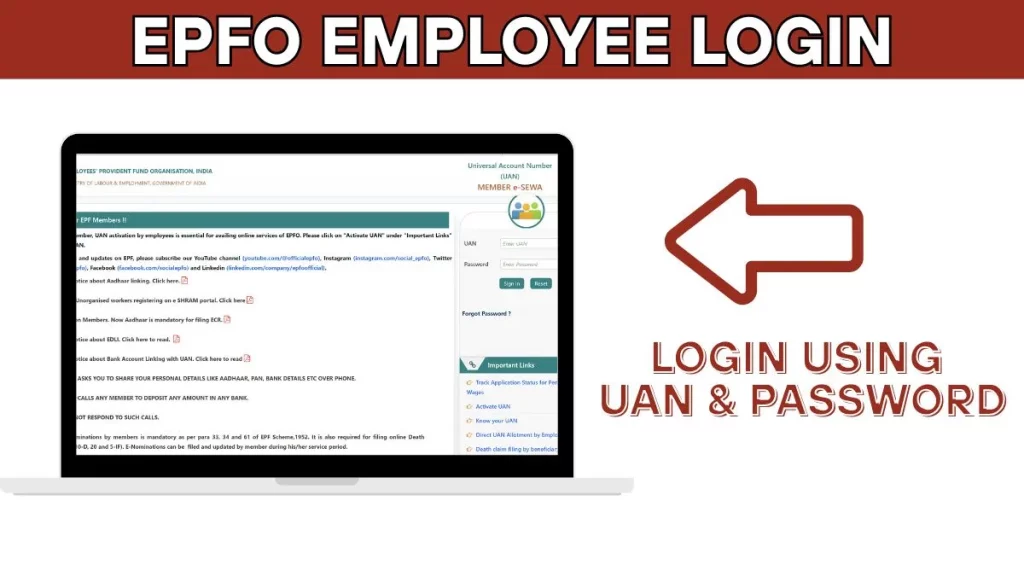
Step-by-Step EPFO Employee Login Process
Follow these steps carefully to login to your EPFO member account:
Step 1: Open Your Browser
Open any browser on your mobile phone or computer. Chrome browser works best for the EPFO portal. You can also use Firefox, Edge, or Safari.
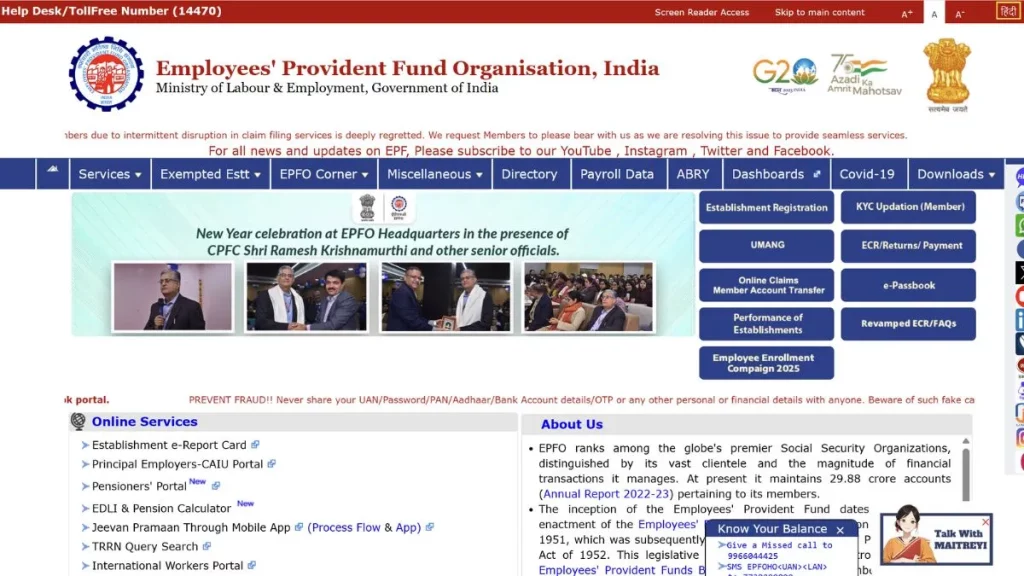
Step 2: Search for EPFO Login
In the browser’s address bar or Google search, type “EPF Login” or “EPFO Login” and press enter. The first result will show “Employees’ Provident Fund Organisation” — this is the official EPFO website.
Alternatively, you can directly visit: epfindia.gov.in
Step 3: Navigate to Employee Section
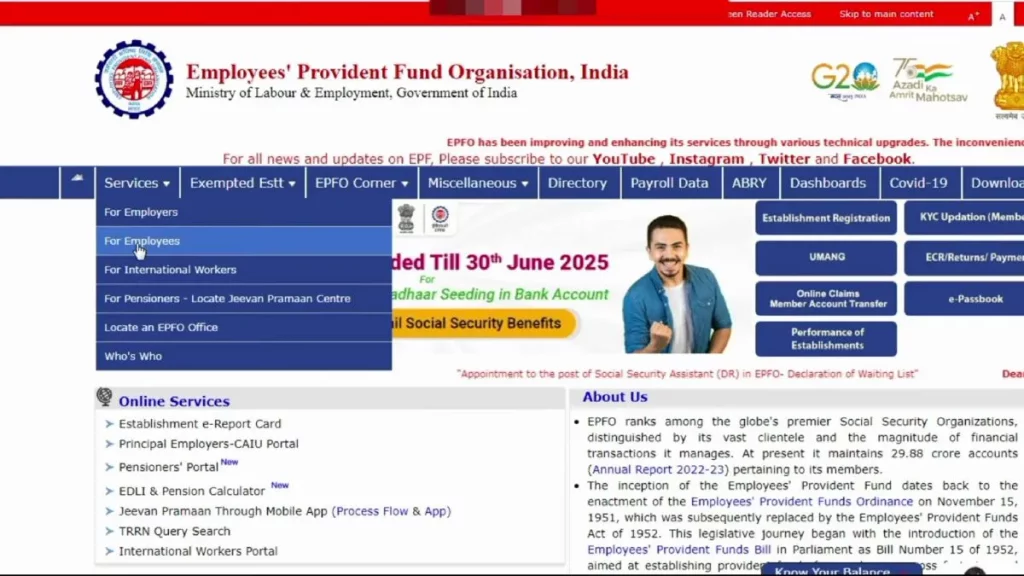
Once the EPFO homepage opens, you’ll see multiple options and sections. Look for the “Services” section on the page. You’ll notice two main options:
| Option | For Whom |
|---|---|
| For Employers | Companies and HR departments |
| For Employees | PF members like you |
Click on “For Employees“ — this is the second option in the services section.
Step 4: Click on Member UAN Online Service
After clicking “For Employees”, a new page will open with several service options. Look for “Member UAN/Online Service” or “Member Passbook” option. Click on it to proceed to the Unified Member Portal.
You can also directly access the member portal by visiting: unifiedportal-mem.epfindia.gov.in
Step 5: Enter Your Login Credentials
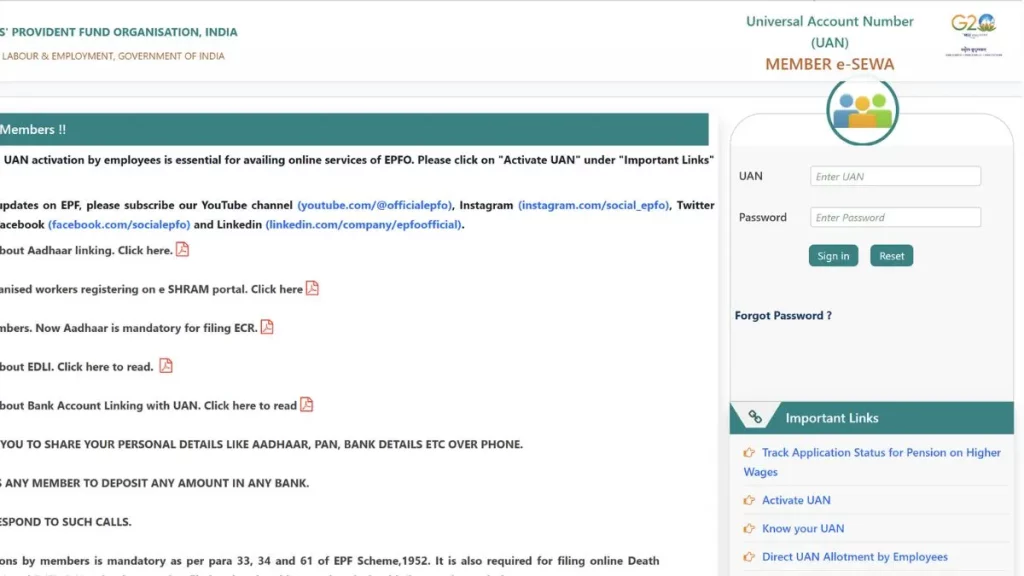
On the Unified Member Portal login page, you’ll see a login form on the right side with these fields:
| Field | What to Enter |
|---|---|
| UAN | Your 12-digit Universal Account Number |
| Password | The password you created during activation |
| Captcha | Type the characters shown in the image |
Enter your UAN number carefully — make sure there are no typing errors. Then enter your password and type the captcha code exactly as shown.
Step 6: Click Sign In
After filling all the fields, click on the “Sign In” button. The system will verify your credentials.
Step 7: Enter OTP for Verification
After clicking Sign In, a new popup will appear asking for OTP verification. This is a security measure to ensure it’s really you.
A 6-digit OTP will be sent to your registered mobile number — the same number that is linked with your Aadhaar card in EPFO records.
| OTP Details | Information |
|---|---|
| OTP Length | 6 digits |
| Sent To | Aadhaar-linked mobile number |
| Valid For | Usually 10 minutes |
| Resend Option | Available if OTP doesn’t arrive |
Enter the OTP in the given field. You’ll also need to enter a captcha code.
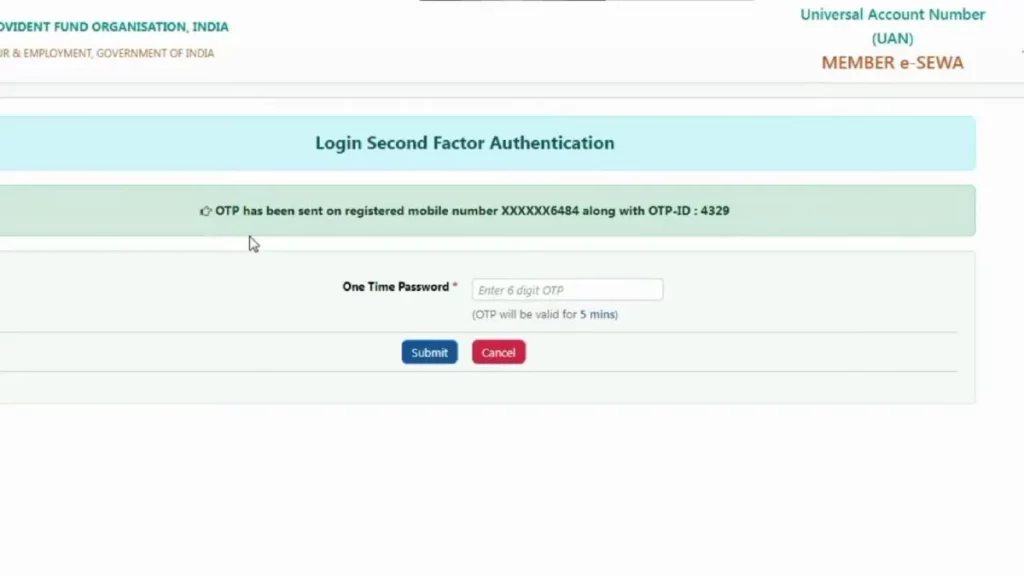
Step 8: Submit and Access Your Account
After entering the OTP, click on “Submit” button. The system will verify your OTP, and if everything is correct, you’ll be logged into your EPFO member account.
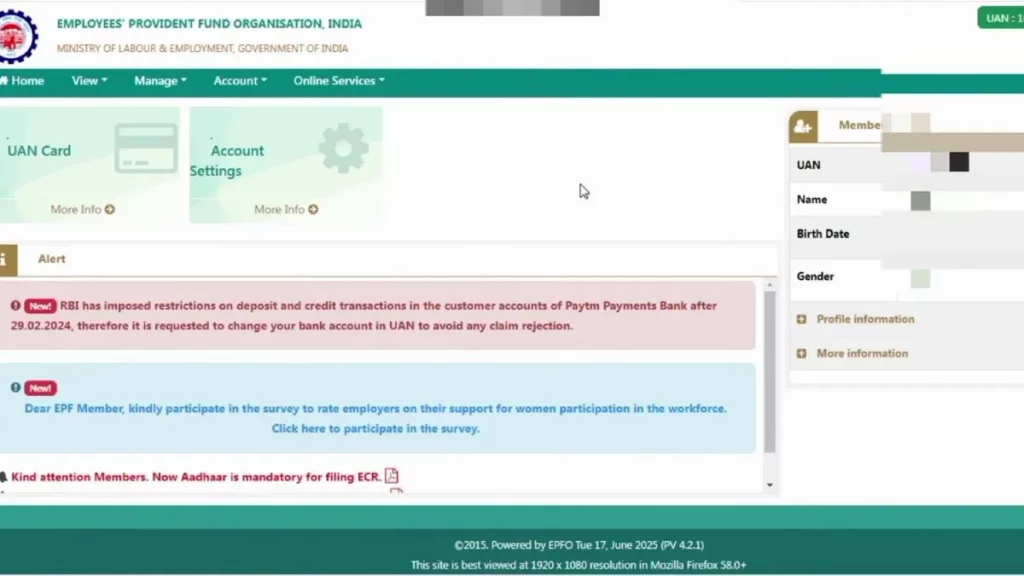
Your dashboard will open showing all available services including:
- View Passbook
- Check PF Balance
- Download UAN Card
- Update KYC
- Apply for PF Withdrawal
- Track Claim Status
- Request PF Transfer
EPFO Login on Mobile vs Desktop
| Feature | Mobile Browser | Desktop Browser |
|---|---|---|
| Website Speed | May be slower | Usually faster |
| Interface | Compact view | Full view |
| Captcha Visibility | Sometimes small | Clear and visible |
| OTP Entry | Easy (same device) | Need to check phone |
| Passbook Download | May require PDF viewer | Opens directly |
Pro Tip: If you’re using mobile, turn on desktop mode in your browser settings for a better experience. The EPFO portal works better in desktop view even on mobile devices.
Common EPFO Login Problems and Solutions
Many members face issues during login. Here are the most common problems and how to solve them:
Problem 1: “Invalid UAN or Password” Error
| Possible Cause | Solution |
|---|---|
| Wrong UAN entered | Double-check your UAN from salary slip |
| Incorrect password | Use “Forgot Password” to reset |
| Caps Lock is ON | Check if caps lock is affecting password |
| Extra spaces typed | Re-enter without any spaces |
Problem 2: Captcha Not Loading or Not Clear
| Possible Cause | Solution |
|---|---|
| Slow internet | Wait for page to load completely |
| Browser cache issue | Clear browser cache and cookies |
| Server overload | Try refreshing the page multiple times |
| Browser compatibility | Try a different browser |
Problem 3: OTP Not Received
| Possible Cause | Solution |
|---|---|
| Wrong mobile number in records | Contact employer to update correct number |
| Network issue | Check mobile signal strength |
| DND (Do Not Disturb) active | Disable DND by sending “STOP DND” to 1909 |
| OTP delayed | Wait 2-3 minutes and try “Resend OTP” |
Problem 4: Account Locked After Wrong Attempts
If you enter wrong password multiple times, your account may get temporarily locked.
| Solution |
|---|
| Wait for 24 hours for automatic unlock |
| Or use “Forgot Password” option to reset immediately |
Problem 5: Website Not Opening
| Possible Cause | Solution |
|---|---|
| EPFO server maintenance | Try after some time (usually early morning works best) |
| High traffic | Avoid month-end when many users access portal |
| Internet issue | Check your connection and try again |
Alternative Login Methods
If you’re facing continuous issues with the web portal, try these alternatives:
Option 1: UMANG App
- Download UMANG app from Play Store or App Store
- Register with your mobile number
- Search for “EPFO” in the app
- Select “Employee Centric Services”
- Login using UAN and OTP
- Access all EPFO services
Option 2: m-sewa Portal
EPFO also has a mobile-friendly portal specifically designed for smartphone users. The interface is simpler and loads faster on mobile devices.
What You Can Do After Login
Once you successfully login to your EPFO account, you have access to multiple services:
| Service | What You Can Do |
|---|---|
| View Passbook | Check all contributions and balance |
| Download Passbook | Save PDF for your records |
| KYC Update | Link Aadhaar, PAN, Bank Account |
| PF Withdrawal | Apply for partial or full withdrawal |
| PF Transfer | Move old PF to current account |
| Claim Status | Track your pending claims |
| UAN Card | Download your UAN card |
| Service History | View all your employment records |
Security Tips for EPFO Login
Your PF account contains your hard-earned money. Keep it secure:
| Do’s | Don’ts |
|---|---|
| Use strong password with special characters | Don’t share UAN and password with anyone |
| Login from personal device only | Don’t use public computers for login |
| Always logout after use | Don’t save password in shared browsers |
| Keep Aadhaar mobile updated | Don’t ignore OTP — it’s for your security |
| Check passbook regularly | Don’t click on suspicious EPFO links |
Quick Login Checklist
Before you start the login process, verify:
- You have your 12-digit UAN number
- You remember your password (or can reset it)
- Your Aadhaar-linked mobile is with you
- Mobile has active network to receive OTP
- You’re using a compatible browser
- Internet connection is stable
Following these steps will ensure a smooth login experience. If you still face issues after trying all solutions, you can contact EPFO helpline at 1800-118-005 (toll-free) or raise a grievance on epfigms.gov.in.